Web Server
The Web Server feature lets PRO Connect host a small web app on your local network so phones, tablets, or other computers can open PRO Connect in a browser and control the system remotely. The system allows multiple devices to connect at the same time.
The Web Server runs on the desktop PRO Connect application. The desktop app must stay open for remote clients to stay connected.
Why use the Web Server?
A few common situations:
- Adjusting mixes from the stage. A musician on the stage can open the web app on their phone and tweak their own monitor mix from wherever they are.
- A second screen for the engineer. Keep the main PRO Connect view on the laptop and a remote tablet open for quick adjustments.
Enabling the Web Server
Open Settings. In the Web Server Interface dropdown, pick the network adapter that's connected to the same network as your phone or tablet. Wireless interfaces and Wi-Fi are acceptable for portability.
As soon as you pick an adapter, the server starts and two more fields appear:
- Hostname — an arbitrary name used as the address other devices will browse to. The
.localsuffix is appended automatically. Pick something short and unique on your network (e.g.studio-a,mainstage). - Port — the TCP port to serve on. Default is fine; typically does not need to be changed. Leave at
0for automatic port selection, or pick any value in the range1024–65535.
To stop the Web Server, choose — none — in the adapter dropdown.
Connecting a Remote Device
Make sure the remote device is on the same network as the adapter you picked above (same Wi-Fi access point, or wired to the same router/switch).
Open a web browser on the phone or table and go to:
http://<hostname>.local:<port>
For example, if your hostname is studio-a and your port is 5500:
http://studio-a.local:5500
QR Code shortcut
The fastest way to connect a phone or tablet is the QR code: click the QR icon next to the Web Server Interface dropdown. A modal pops up with a scannable code that takes the mobile device straight to the correct URL.
.local addressing depends on mDNS / Bonjour working on your network. Most home and small-office networks support it out of the box. Some corporate or enterprise networks block mDNS — if a remote device can't reach hostname.local, ask your network admin or use the laptop's IP address directly instead.
Web Client List
PRO Connect tracks every device that has ever connected to the Web Server. Open the Sessions tab to see the WEB CLIENTS sidebar.
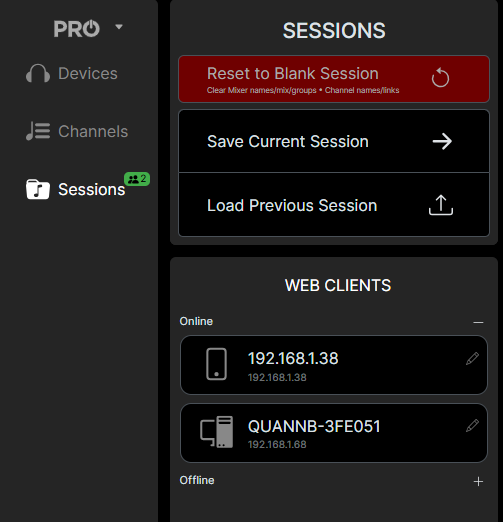
Clients are grouped into two sections:
- Online — devices currently connected. Each entry shows the device type icon (phone / tablet / laptop), the device name, and its IP address.
- Offline — devices that have connected before but aren't currently online.