PRO Connect
Getting Started with PRO Connect
If you are having problems communicating with your Switch Back PLUS from the PRO Connect Application please follow this guide to get started with your system.
STEP 1: Install PRO Connect
The PRO Connect Application can be obtained here:
- 64 bit Mac Version: https://storage.googleapis.com/ht_firmware/pro_connect_app/pro-connect.dmg
- 64 bit Windows Version: https://storage.googleapis.com/ht_firmware/pro_connect_app/pro-connect-setup.exe
STEP 2: Connect Dante to Computer
- Connect your Dante network to a physically wired Ethernet port on your computer
- Make a note of which interface you selected
STEP3: Configure Dante Network
Use Dante Controller to select the interface you connected to in STEP 2.
The Dante interface should most likely be the same as the PRIMARY interface.
STEP 4: Select the Dante Mode
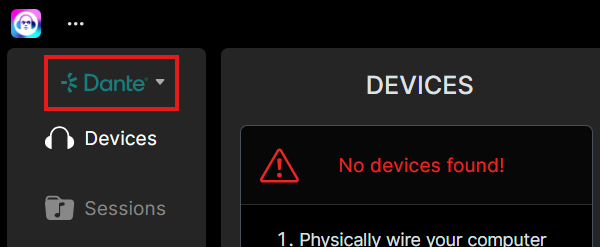
Ensure you are in PRO Connect's Dante mode of operation (not PRO mode). Use the dropdown here:
STEP 5: Select Devices Interface
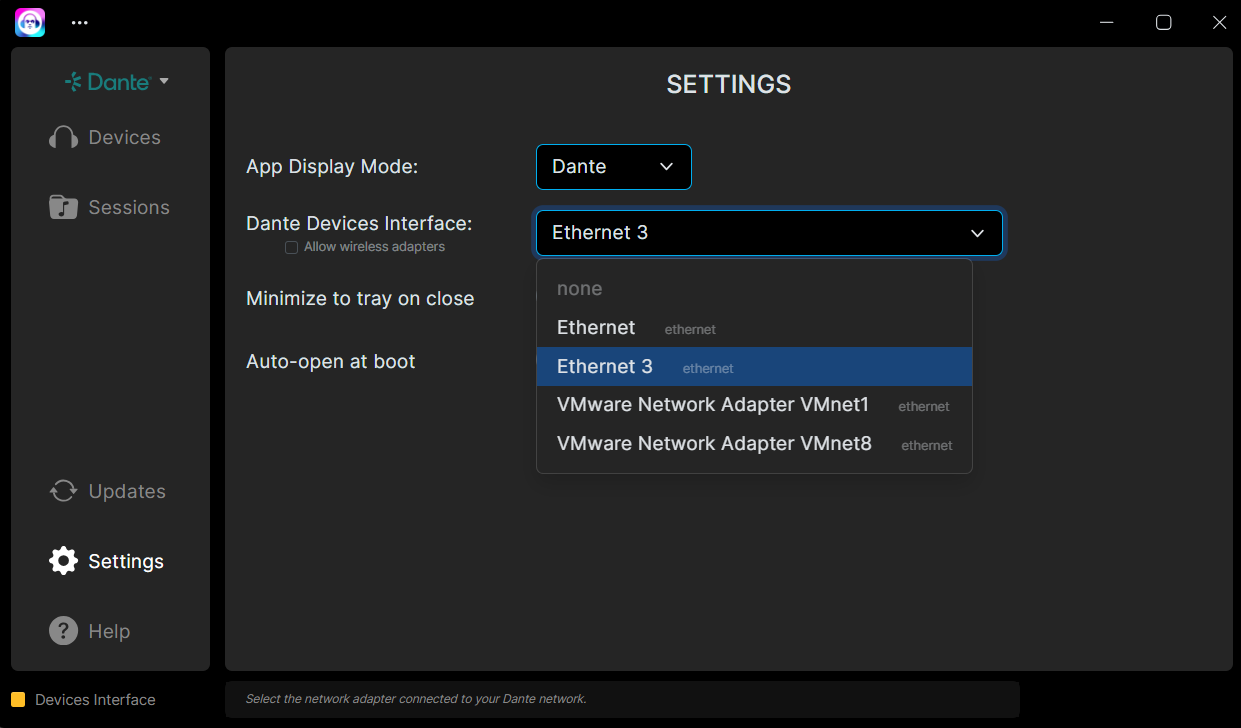
- Select the correct ethernet port in the PRO Connect application for your Dante Devices Interface in the app's Settings page. This should be the Ethernet interface that your Dante network is connected to.
STEP 6: Wait for Devices
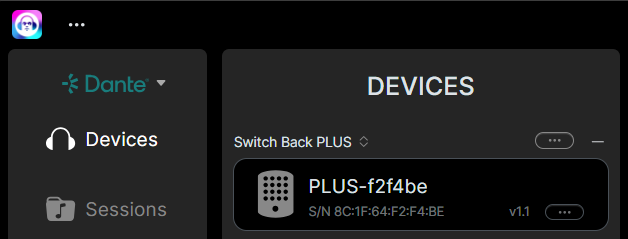
Wait until your PLUS device is displayed in the PRO Connect device list.
STEP 7: Update Switch Back PLUS
Use the Updates tab to update any Switch Back PLUS devices on your network.
- Your PLUS firmware will automatically be checked against the latest version in the cloud.
- Plan at least 15 minutes to complete this update.
- Follow all in-app instructions.
Troubleshooting
Here are some notes that can help with troubleshooting your network.
- Make sure you follow all of Audinate's Network Requirements
- Your Device Interface in PRO Connect must match the device interface you have selected in Dante controller.
- The PRO Connect Application uses the following network ports to communicate with Switch Back PLUS devices. Ensure your IT infrastructure allows access to these ports:
These protocols and ports MUST BE enabled when you install the PRO Connect Application. The App should request certain permissions during the install process or on its first boot. You must allow these network permissions.
- To manage network permissions for an app on a Mac, go to System Settings > Privacy & Security > Local Network to toggle access for specific apps
| Protocol | Port | Information |
|---|---|---|
| MDNS | UDP port 5353 | Network discovery on multicast address 224.0.0.251 |
| OSC | TCP port 3032 | Control and status between PRO Connect and the PLUS device |
| HTTP | TCP port 80 | Firmware updates utilize ws://{device IP}/ws and http://{device IP}/upload |