Dante Card
Overview
With hundreds of professional audio manufacturers now supporting Dante, it is an easy way to route multiple channels of high quality audio at a very low latency between two or more pieces of equipment (including directly out of a PC or Mac using only its Ethernet port.) Dante (Digital Audio Network Through Ethernet) is a standard audio-over-Ethernet protocol developed and supported by Audinate Pty Ltd.
Please note that we did not develop the Dante protocol. We are simply an end-point. In this manual, we will just barely scratch the surface of Dante's capabilities. The creators of Dante know their protocol better than anyone! Please visit www.audinate.com for a vast wealth of training videos, example setups, and documentation.
Our Hear Back PRO Dante card connects 16 channels of simultaneous audio input and output with other Dante enabled equipment using a standard Ethernet network connection. Dante will work with standard network switches and routers and is safe to combine with your existing computer network, if necessary. Both 100BaseT and 1000BaseT network speeds are supported. However, 1000BaseT (gigabit) Ethernet is highly recommended due to the lower latency that it offers. Our system supports sampling rates of 44.1kHz, 48kHz, 88.2kHz, 96kHz, 176.4kHz, and 192kHz.
Advantages / Features
- Connects 16 or 32 channels of simultaneous audio input and output with other Dante-enabled equipment using a standard Ethernet network connection (depending on FW version of Dante Card)
- Supports sampling rates of 44.1kHz, 48kHz, 88.2kHz, 96kHz, 176.4kHz, and 192kHz
- (2) cards can be populated per Hub to allow A/B input switching between (2) banks of 16 channels with FW V2 or 32 simultaneous channels with all later firmware versions.
FW V6 and V8 allow the use of a single 32 channel Dante card, allowing the second input to be used as a second switched signal source.
- Up to (2) cards can be populated to allow A/B input/clock switching
Configuration
A Dante network requires at least two devices that support the Dante protocol and a single Cat5e or Cat6 network connection between the two devices. Note that the cable does NOT need to be a cross-over cable. Before you can send audio over the Dante network, you must first connect a Windows PC or Mac running the Dante Controller software (download from www.audinate.com) in order to configure audio channel routing. You must choose what you want to send to each of the sixteen channels of the Hear Back PRO Hub. Whatever is assigned to channels one through sixteen in the Dante Controller software is what will show up on channels 1 through 16 on the Hear Back PRO Mixers.
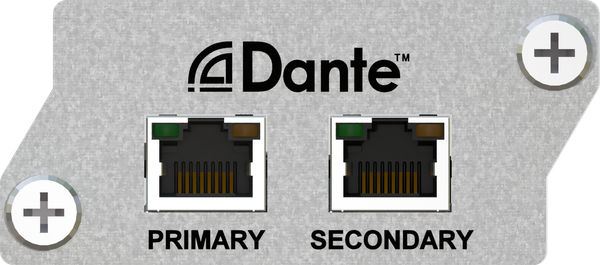
After configuration, the computer can be disconnected. To connect the PC or Mac, you can connect the computer's Ethernet cable directly into the Hear Back PRO Dante card (or into a network switch that the other Dante devices are also connected to.) The card has two Ethernet ports: "PRIMARY" and "SECONDARY". By default, these ports are configured as "switched", meaning that are both interchangeable and Dante equipment can be connected to either port. For example: a sound board with Dante could be plugged into the “PRIMARY” port, and your PC or Mac could be plugged into the "SECONDARY" port.
Alternatively, these two ports can be reconfigured (using the Dante Controller software) to function as redundant ports. When the ports are used in redundant mode, two Cat5e or Cat6 cables connect to each Dante device. This provides redundancy and protection from audio interruption in case one network cable gets damaged or a network switch fails. (More on redundant mode later.)
Dante Controller
Once you download and install the Dante Controller software and connect your PC or Mac to the Dante network, the Dante devices will automatically show up in the routing view.
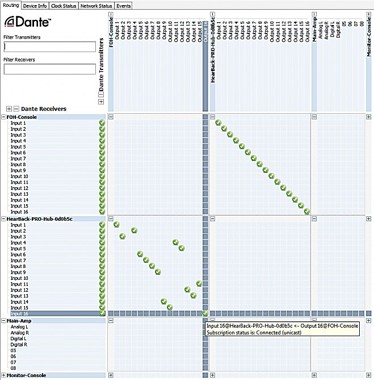
It is not necessary to assign any special IP address to your computer in order to communicate with the Dante devices. Dante uses broadcast messages to automatically detect and communicate with the devices on the network regardless of your network settings.
In the routing view (shown above), you will see devices that can receive Dante audio along the left (rows) and you will see devices that can transmit Dante audio along the top (columns). Clicking on the "+" next to each device will expand the device to show all of its inputs or outputs. Clicking a cross-point box (as shown in the image above where the two grey lines meet) will route audio from a transmitter to a receiver. If two devices are running at different sampling rates, you will not be able to route audio between them. To view and change the sampling rate of a device, double click the name of the device in the routing view of the Dante Controller software; a Device View will open up in a new window showing settings and information for that device. Clicking on the Device Config tab will allow you to view and change the current sampling rate.
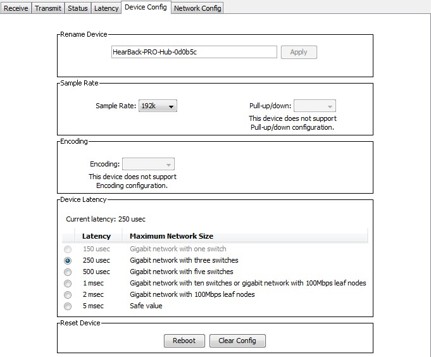
The Network Config tab (not shown) is another tab on the Device View window which will allow you to change the function of the "SECONDARY" port on the Dante card from switched mode to redundant mode if you are running a second (redundant) Dante network to all your devices.
Master Clock Source
The Dante network must have a master clock source. This is chosen using the Dante Controller Software under the Clock Status view tab (shown below). In most applications, the Hear Back PRO Dante card is NOT chosen as the master because it is typically the final destination for the audio. Usually, the device that is the source of the audio is chosen as the preferred master clock source.
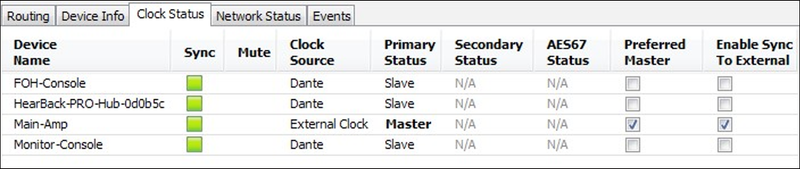
Since the Hear Back PRO Hub can house multiple input and output cards, it is possible to use the Hub as an audio format converter. For example: an AES/EBU, Waves SoundGrid, ADAT, or Analog card could be placed in the first card slot and a Dante card could be placed in the third card slot. If the input select switch on the front of the Hub is selected to input "A", the AES/EBU or whichever card is in the first slot will be chosen as the input. But since the Dante card does both input and output, these 16 channels that are coming in from the first card slot will be sent out over Dante. In this scenario, you would want to choose the Hear Back PRO Dante card as the preferred master clock source in the Dante Control software because the audio is originating from an entirely different clock domain. If you don't do this, you will likely hear digital pops and clicks.
Do not populate the Dante card in slots 2 or 4 on the Hear Back PRO Hub. These slots are reserved for Analog input cards, Analog output cards, and Mixer Network cards.
In the rare case that you use the Dante card to send audio out over the Dante network, it is important to understand that the Dante card does NOT automatically set the sampling rate of the Dante network. Due to the Dante architecture, you MUST choose the correct sampling rate (as previously discussed) on the Hear Back PRO Dante card in the Dante Controller software so that it matches the current sampling rate of the Hear Back PRO Hub. Otherwise you will hear some very strange things! Also notice that when the Dante card is not selected as the input on the Hub, the Dante Controller software automatically checks the box "Enable Sync To External" under the Clock Status view. This is because when sending out audio, the clock source must come from the Hear Back PRO Hub in order to keep the clocks synchronized.
If you hear anything unusual, the first place to check is the Clock Status view. Verify that the correct Preferred Master clock source is selected, and "Enable Sync To External" is selected on that device if applicable. Next, make sure that each device (under the Device View) has the correct sampling rate selected. Remember that due to the Dante architecture, changing the sampling rate on one device does NOT change the sampling rates on all the other devices. You must use the software to make the changes on all connected devices!
Virtual Sound Card
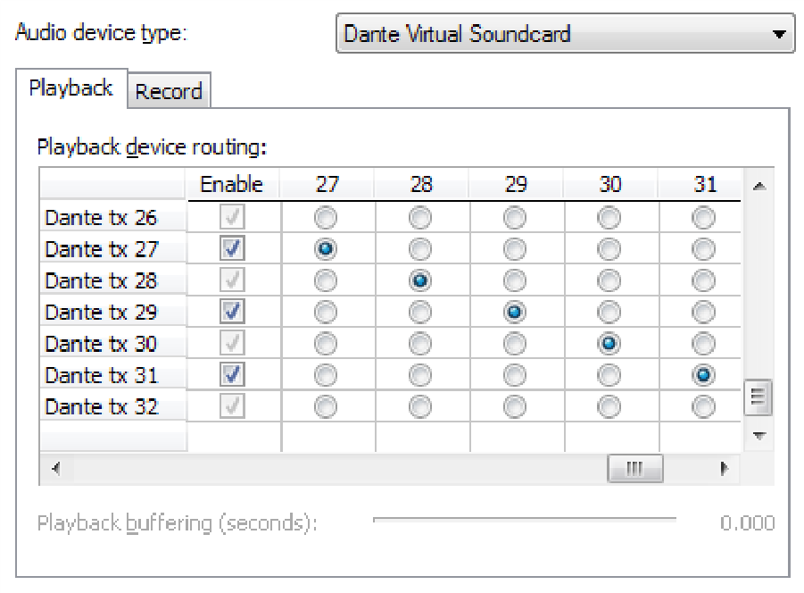
Dante also offers a "Virtual Sound Card" driver for both PC and Mac that can be purchased and downloaded from Dante's site www.audinate.com for a nominal fee. This driver allows you to send and receive Dante audio using nothing but your Ethernet connection on your PC or Mac. The driver shows up as multiple sound devices that you can use in software such as Sound Forge (shown below), Pro Tools, or the like.